Default or compact: picking a home style
Feather Light has two home screens. Here is what each one is good at, and how to switch.
When you first open Feather Light, the welcome screens ask you to pick a look. There are two, and you can switch between them at any time.
The default home: cards and a dock
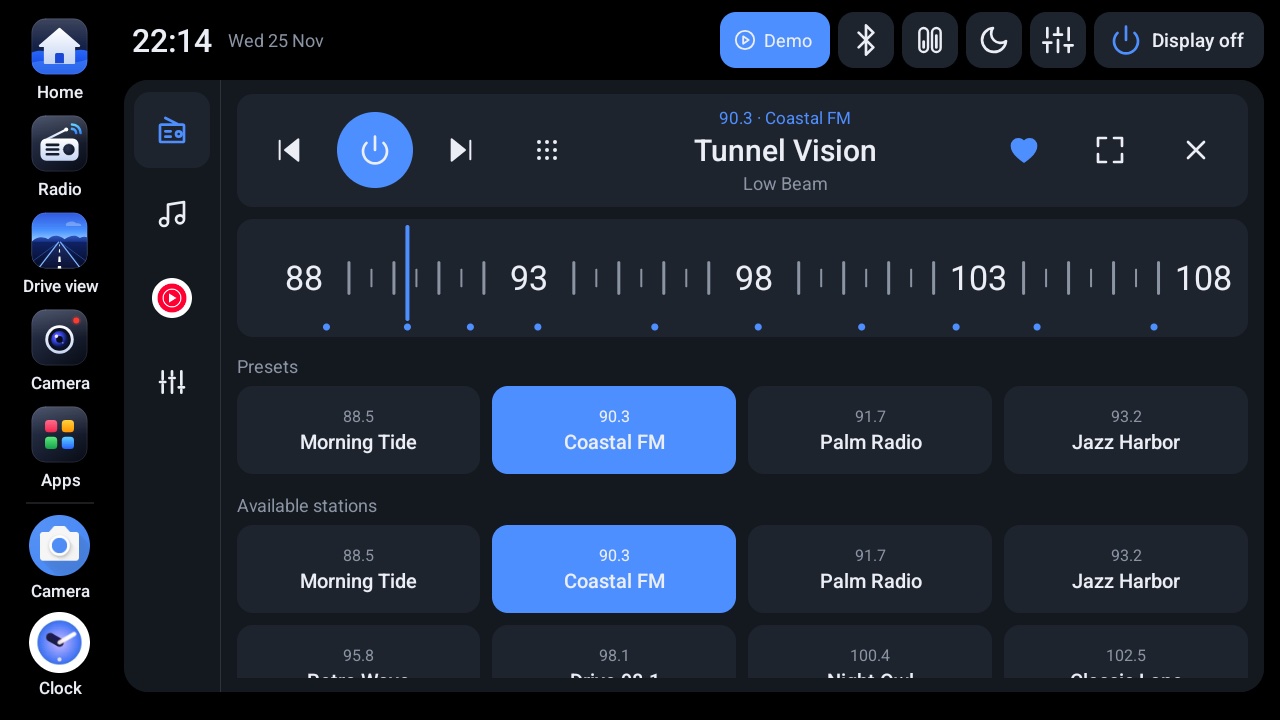
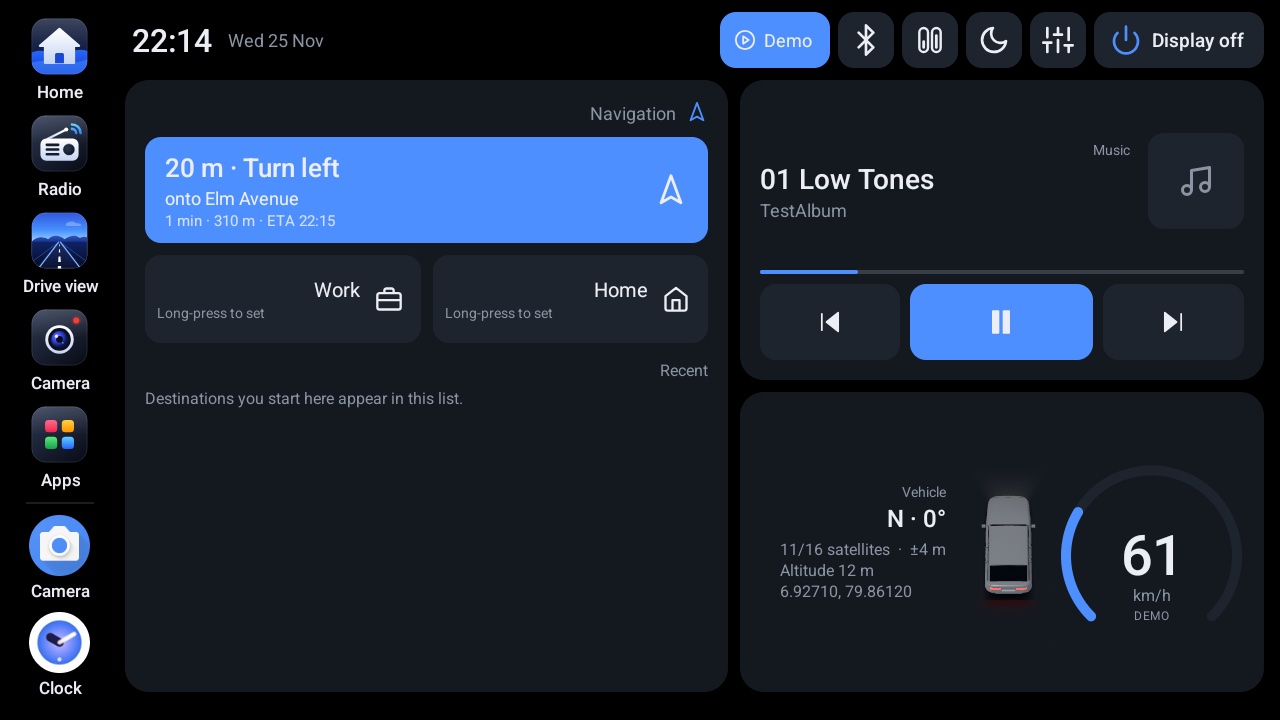
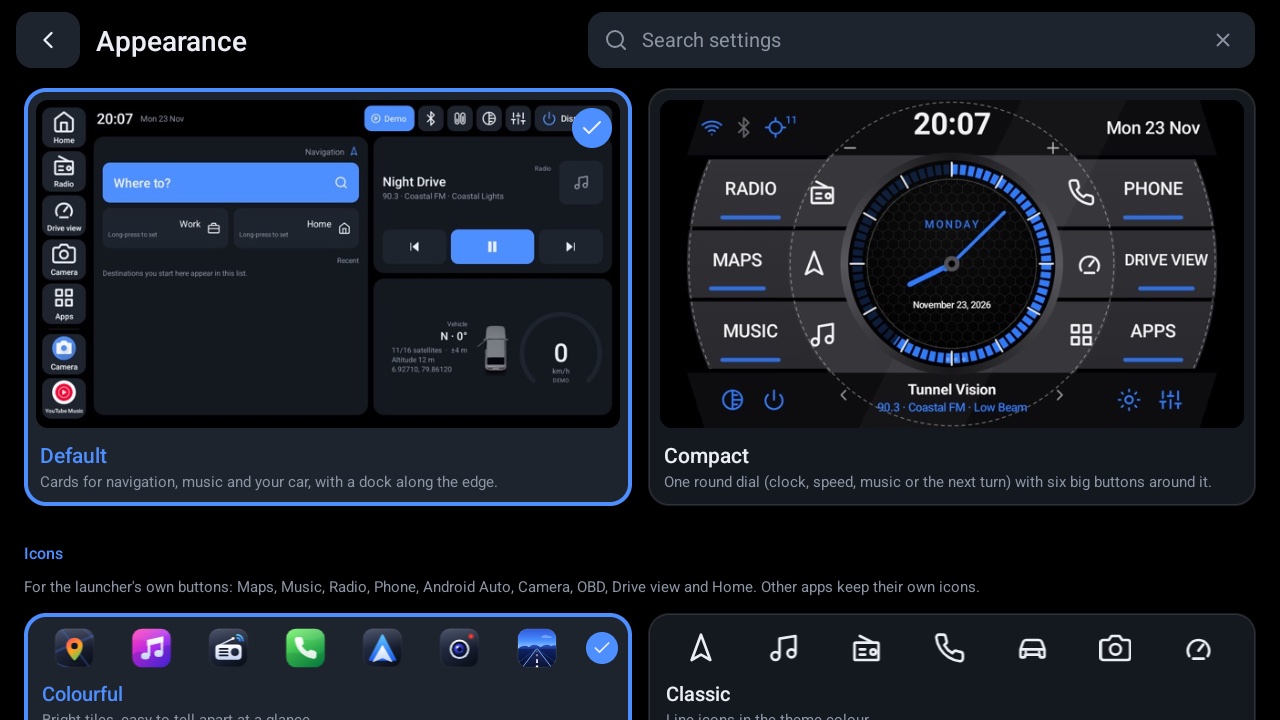
The default home splits the screen into cards: directions, what is playing, and your car with its speed. Your apps sit in a dock down the side, so the app you need is always one tap away.
It suits wide screens and people who like to see everything at once. On units that allow it, your navigation app can even run inside the directions card.
The compact home: one dial, six buttons
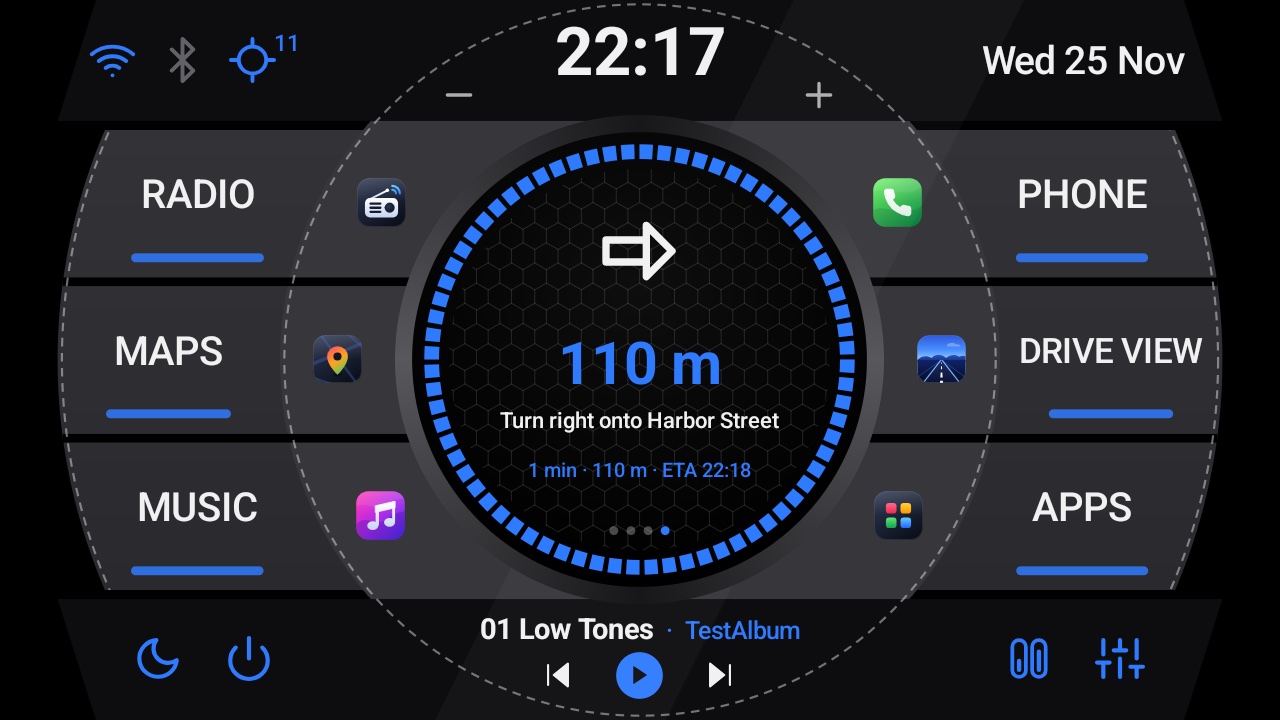
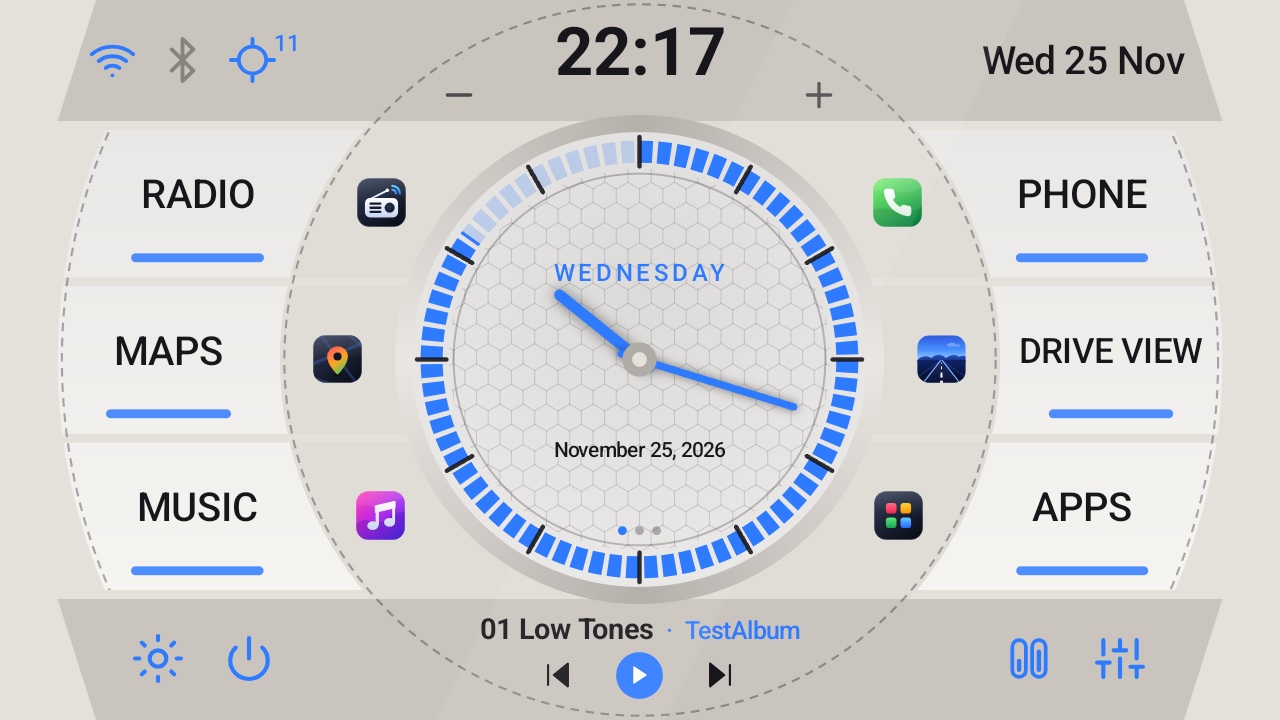
The compact home is built around a large round dial. The dial can show your next turn, your speed, what is playing or a clock. Around it sit six big buttons for the things you use most: radio, maps, music, phone, the drive view and your apps.
It suits smaller screens, and anyone who wants fewer things to look at. The compact home also has its own night and day colours.
How to switch
- Open Settings.
- Go to Appearance.
- Tap the style you want. The home screen changes straight away.
In compact mode, you can also choose what the dial shows and which six buttons sit around it.
Which should I pick?
Try both for a drive. If you find yourself reading the cards, keep the default. If you mostly want the next turn and a big button for music, go compact.